
Managing a business website should not feel like a full-time job in troubleshooting. When your site goes down, every minute of latency translates t lost revenue and damaged SEO rankings. While many providers offer “unmanaged” space, elite website technical support for WordPress errors ensures that technical hurdles do not paralyze your growth.
Quick Navigation: Common WordPress Technical Issues
1. Internal Server Error (500 Error WordPress)
2. Error Establishing a Database Connection
3. The WordPress White Screen of Death
9. Login Page Refresh/Redirect Issues
10. SSL and Mixed Content Warnings
1. Internal Server Error (500 Error WordPress)
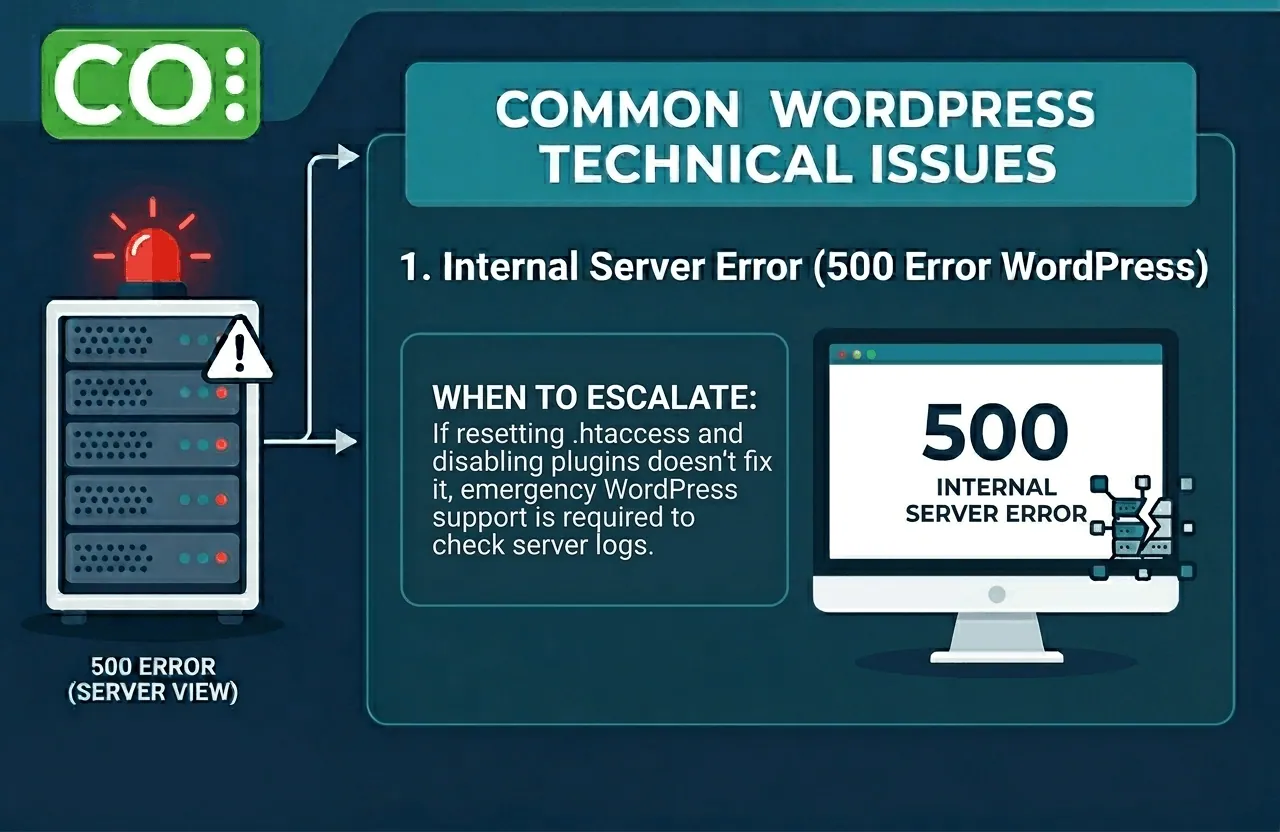
What is a 500 Internal Server Error? It is a generic “catch-all” error message indicating the server encountered an unexpected condition that prevented it from fulfilling the request. For WordPress users, this typically stems from corrupted files or plugin conflicts.
Symptom
A blank screen or a “500 Internal Server Error” message appears across the entire site or specific pages.
Likely Cause
Common culprits include a corrupted .htaccess file, reaching the PHP memory limit, or a faulty plugin update.
What to Check
Log in via FTP and rename your .htaccess file to .htaccess_old to see if the site loads. If it does, go to Settings > Permalinks and click “Save” to generate a new one.
When to Escalate
If the error persists after resetting the .htaccess and disabling plugins, you need emergency WordPress support to check server logs for deep-seated configuration issues.
2. Error Establishing a Database Connection
Your website is a collection of files and a database. When they stop talking, your site stops working.
Symptom
A plain text message stating “Error Establishing a Database Connection” appears instead of your website.
Likely Cause
Incorrect database credentials in your wp-config.php file or a corrupted database table.
What to Check
Verify that your database username, password, and host are correct. You can also add define('WP_ALLOW_REPAIR', true); to your wp-config.php to attempt a native repair.
When to Escalate
If credentials are correct and the site still won’t connect, your WordPress webmaster needs to verify if the database server itself is down or throttled due to traffic spikes.
“A slow or broken database connection can lead to higher bounce rates and significantly lower conversion rates for e-commerce sites.”
3. The WordPress White Screen of Death (WSoD)
Symptom
A literal blank white screen with no error message at all, leaving you with zero clues.
Likely Cause
Usually caused by a script reaching the memory limit or a fatal error in a theme or plugin.
What to Check
Increase your PHP memory limit in the wp-config file. If that fails, disable all plugins via the database or FTP.
When to Escalate
When you cannot access the admin dashboard or the FTP, professional WordPress support services are required to enable debugging mode and pinpoint the script failure.
4. Connection Timed Out
Symptom
The site takes too long to load and eventually displays a “Timed Out” message.
Likely Cause
This happens when your website is trying to do more than the server can handle, often due to heavy plugins or poor server optimization.
What to Check
Deactivate resource-heavy plugins (like broken link checkers or heavy backup tools) and check your internet connection.
When to Escalate
If your site regularly times out, your host may be over-provisioning their servers. This is a sign you need high-performance managed SEO hosting.
5. Stuck in Maintenance Mode
Symptom
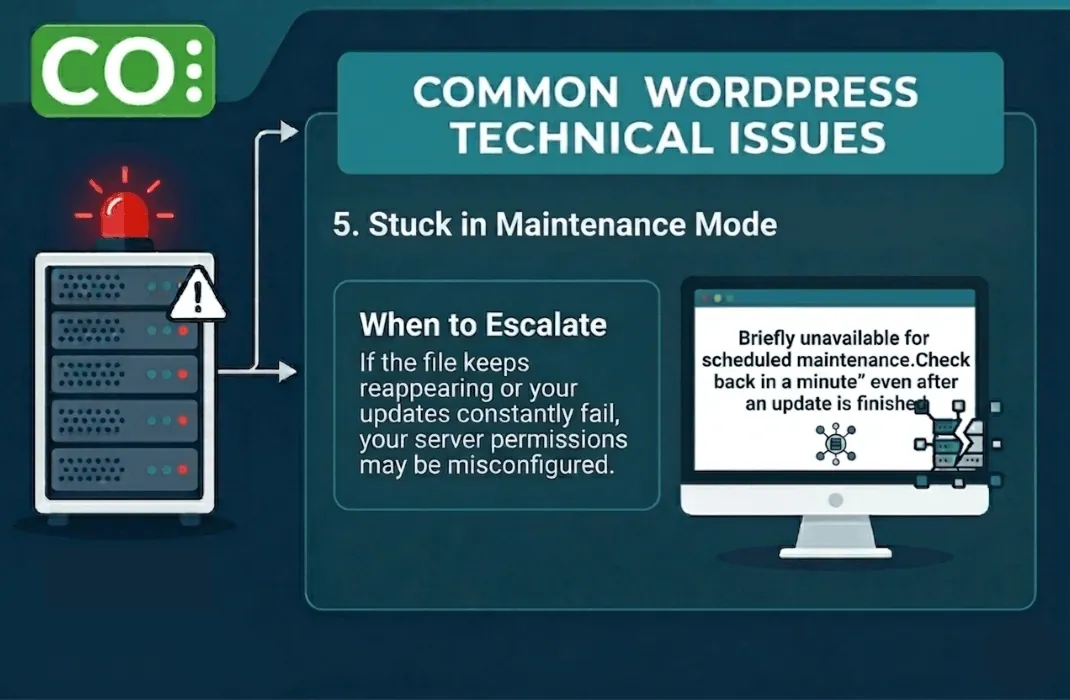
Your site shows “Briefly unavailable for scheduled maintenance. Check back in a minute” even after an update is finished.
Likely Cause
WordPress creates a .maintenance file during updates. If the update is interrupted, the file remains.
What to Check
Delete the .maintenance file from your root directory using FTP.
When to Escalate
If the file keeps reappearing or your updates constantly fail, your server permissions may be misconfigured.
6. PHP Syntax Errors
Symptom
A message like “Parse error: syntax error, unexpected…” followed by a file path.
Likely Cause
A typo in your code, that usually occurs after manually editing functions.php or adding a code snippet.
What to Check
The error message tells you exactly which line of code is broken. Revert the last change you made.
When to Escalate
If you cannot access the file editor to fix the typo, contact your WordPress support services to restore a clean version of the file.
7. Exhausted Memory Limit
Symptom
An error message stating “Fatal error: Allowed memory size of X bytes exhausted.”
Likely Cause
Your WordPress site or a specific plugin requires more RAM than your hosting environment is providing.
What to Check
Edit your wp-config.php file and add define('WP_MEMORY_LIMIT', '256M');.
When to Escalate
If your host limits your ability to increase memory via wp-config, they are restricting your site’s growth. You need a host that supports high-performance business applications.
8. Image Upload Failures
Symptom
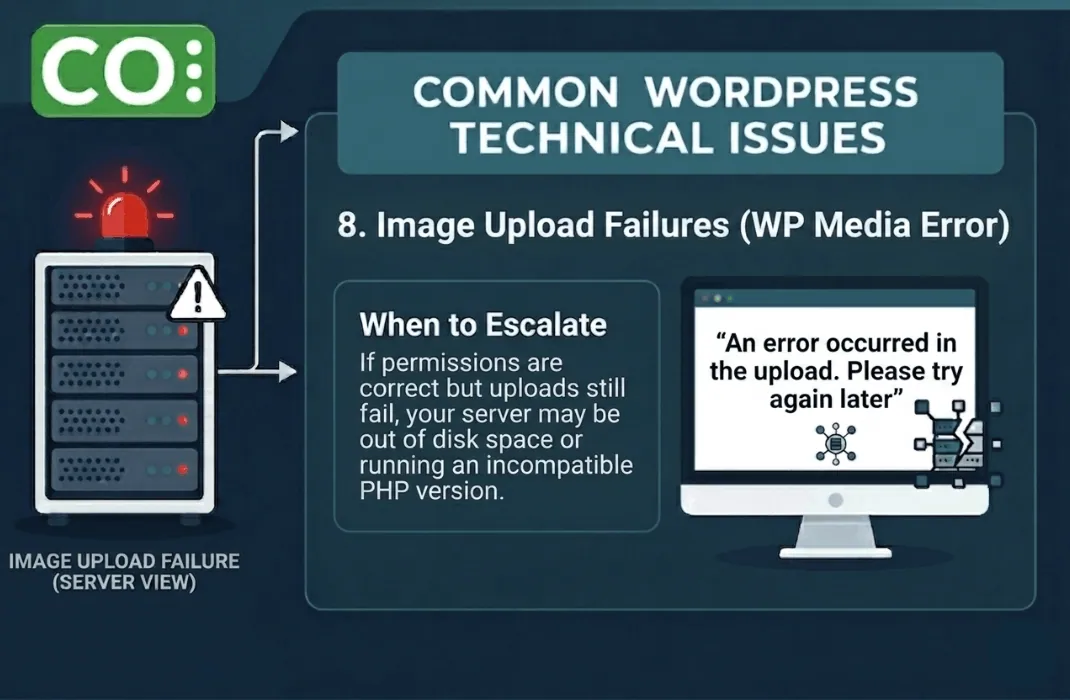
An “An error occurred in the upload. Please try again later” message when adding media.
Likely Cause
Incorrect file permissions on the server or a temporary server glitch.
What to Check
Ensure your “uploads” folder permission is set to 755.
When to Escalate
If permissions are correct but uploads still fail, your server may be out of disk space or running an incompatible PHP version.
9. Login Page Refresh and Redirect Issues
Symptom
You try to log in, but WordPress simply refreshes the login page and redirects you back to it without an error.
Likely Cause
Incorrect site URL settings or corrupted cookies.
What to Check
Clear your browser cookies and cache. Ensure your siteurl and home values in the database match exactly.
When to Escalate
If your URLs are correct and you are still locked out, it may be a security firewall blocking your IP, requiring server-side intervention.
10. SSL and Mixed Content Warnings
Symptom
The “Not Secure” warning in the browser bar despite having an SSL certificate installed.
Likely Cause
Some assets (images or scripts) are still loading via HTTP instead of HTTPS.
What to Check
Use a plugin like “Better Search Replace” to update HTTP links to https in your database.
When to Escalate
If the SSL certificate fails to renew or install correctly, your host should handle the 500 error WordPress and SSL handshakes automatically.
Professional Resolution for Critical Downtime
Your business cannot afford to wait for a ticket response when your revenue is on the line. If you want a team on call to handle these technical hurdles, CoHosta provides proactive monitoring and website technical support for WordPress errors that keep your site online 24/7. Don’t waste hours in forums when you could have a Senior Systems Architect handling the heavy lifting for you. High-performance businesses require more than just space on a server; they require the expertise of a dedicated CoHosta technical lead.
Industry Fact: Research shows that 40% of users will abandon a website that takes more than three seconds to load, making technical stability a direct driver of business ROI.