Launching your first website does not need to feel like assembling furniture without instructions. With the right order of operations, your first half hour can set a solid foundation for performance, security, and future growth. This beginner website hosting setup checklist is designed for first-time site owners who want clarity, not chaos.
This guide assumes you are starting fresh with starter web hosting and a new WordPress install. Follow the steps in sequence, and you will have a functional, secure site framework ready for content.
👉🏼Learn more about the beginner website hosting setup checklist
Your First 30 Minutes: High-Level Hosting Checklist
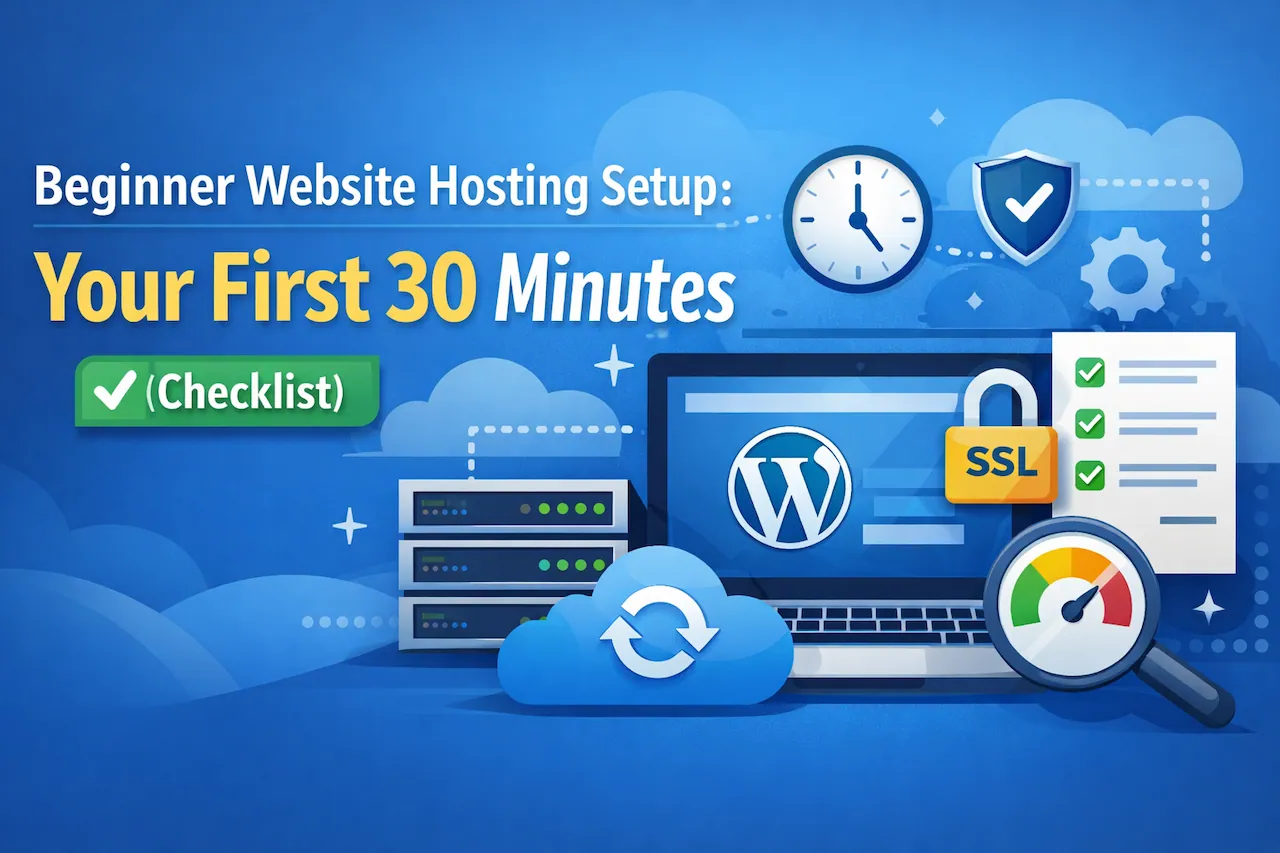
Before diving into details, here is the big picture. Your first 30 minutes should focus on access, security, and stability. Design and content come later.
What You Will Accomplish
- Confirm hosting access and credentials
- Complete your first WordPress setup
- Enable SSL and basic security
- Verify backups and update settings
- Check performance basics
Minute 0–5: Confirm Hosting Access and Environment
Your starter web hosting account is the foundation of everything else. Before installing anything, confirm that your hosting environment is ready.
Log Into Your Hosting Control Panel
Access your hosting dashboard and verify the following:
- Your domain is connected or assigned
- You have access to WordPress tools or installers
- PHP and database services are active
For website hosting for beginners, managed environments reduce early mistakes by preconfiguring server settings.
Create or Confirm Your Admin Email
This email receives system alerts, password resets, and security notifications. Use an address you check regularly.
Minute 5–10: First WordPress Setup Essentials
This phase establishes your content management system. Even if WordPress is preinstalled, configuration matters.
Set Site Title and Admin Credentials
Update your site title and tagline to reflect your brand or project. Avoid using “Just another WordPress site.”
Change Default Login Settings
Use a strong password and confirm your admin username is not “admin.” This is a simple but critical security step for any first WordPress setup.
Delete Placeholder Content
Remove the default post, page, and comment. This keeps your environment clean and avoids indexing low-quality content.
Minute 10–15: SSL Setup and Security Basics
SSL setup is no longer optional. Search engines and browsers expect encryption from day one.
Enable SSL Certificate
Most beginner hosting plans include free SSL. Enable it and force HTTPS across your site.
If you are unsure why this matters, Google’s Search Central documentation explains it clearly:
“HTTPS is a lightweight ranking factor, and it helps keep users secure.”
Google Search Central
Install a Basic Security Plugin
Choose one reputable security plugin and enable:
- Login protection
- File change monitoring
- Firewall defaults
This is enough for now. Overloading security tools early can cause confusion.
Minute 15–20: Backups and Update Management
Backups are your safety net. They matter more than design choices at this stage.
Confirm Automatic Backups
Check whether your hosting provider runs daily backups. If not, install a backup plugin and schedule automated backups.
Reliable website hosting for beginners should never leave backups as a manual task.
Run Core Updates
Update WordPress core, themes, and plugins immediately. Starting on outdated software creates unnecessary risk.
Minute 20–25: Performance and Visibility Settings
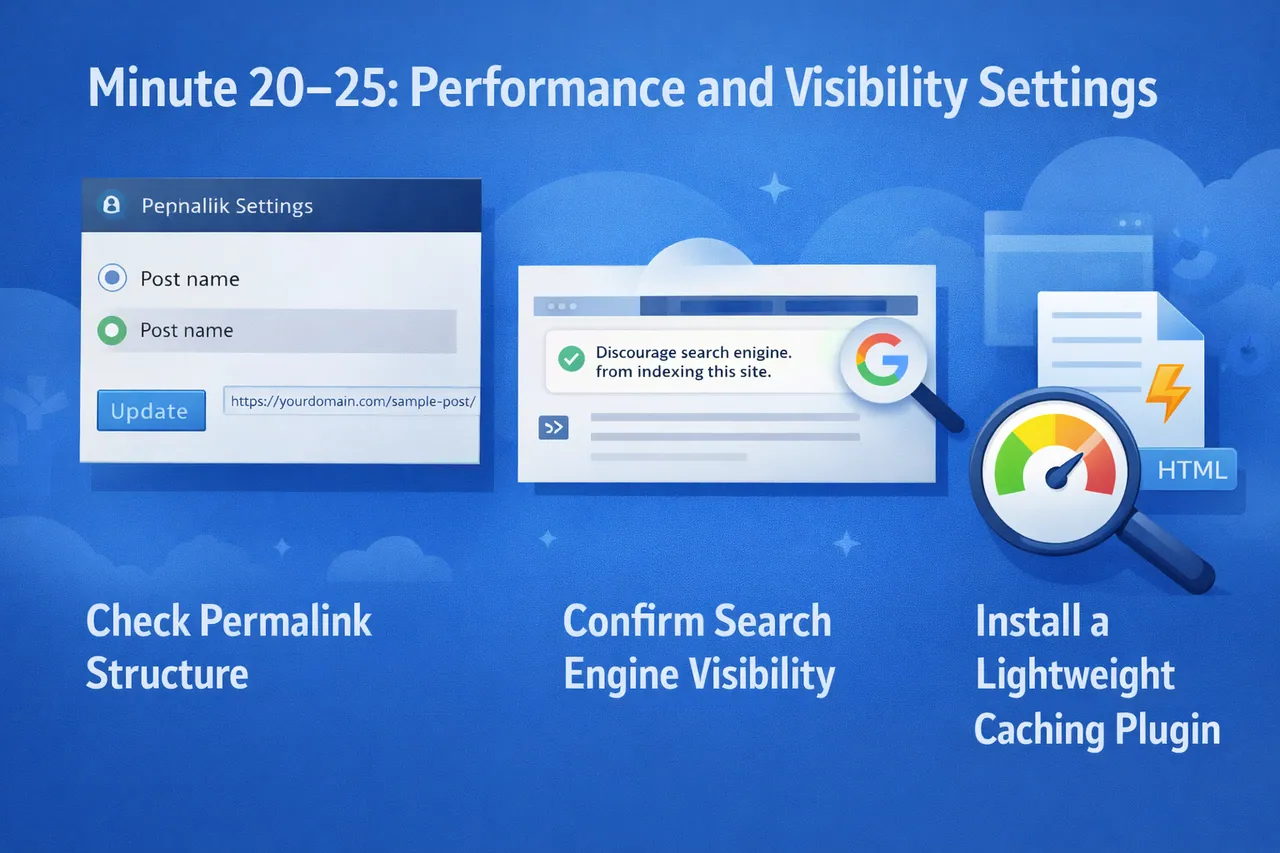
You do not need advanced optimization yet, but you should confirm basic performance settings.
Check Permalink Structure
Set permalinks to use post names. This improves readability and SEO from the start.
Confirm Search Engine Visibility
Ensure the “discourage search engines” setting is unchecked once your site is ready to be indexed.
Install a Lightweight Caching Plugin
One simple caching plugin is enough. Avoid advanced tuning until traffic grows.
Minute 25–30: Final Beginner Hosting Checks
These last checks ensure your environment is stable and ready for growth.
Test a Page Load
Open your site in a private browser window. Confirm HTTPS loads correctly and there are no warnings.
Verify Mobile Responsiveness
Your theme should adapt cleanly to mobile screens. This matters immediately for usability and search visibility.
Document Your Credentials
Store hosting, WordPress, and domain credentials securely. Future you will be grateful.
Common Beginner Hosting Mistakes to Avoid
Installing Too Many Plugins
Each plugin adds complexity. Start minimal and expand intentionally.
Ignoring SSL Warnings
Mixed content errors can silently harm trust and rankings.
Skipping Backups
No beginner website hosting setup checklist is complete without redundancy.
What Comes After the First 30 Minutes
Once your foundation is set, your next priorities should include:
- Content planning and keyword research
- Analytics and tracking setup
- Ongoing updates and monitoring
Your hosting environment should support growth without forcing a migration later.
If you want an easier first setup with hosting that is designed for beginners, explore CoHosta Rookie Website Hosting and use it as your baseline for a clean launch.
Industry Insight: According to Google, 53% of mobile users abandon sites that take longer than three seconds to load, highlighting why early performance and hosting quality matter from day one.
Source: Think With Google