If domain settings have ever felt like a row of mysterious switches that can take your entire website offline with one wrong tap, you’re not alone. This guide breaks down domain registration and DNS basics in plain language so you understand the parts that matter and avoid the parts that break stuff.
If you want a quick starting point for setup or troubleshooting, begin with this domain registration DNS guide so you can work from a clean and predictable foundation.
How Domain Registration and DNS Work Together
Think of your domain as the address people type (like yourcompany.com). DNS (Domain Name System) is the set of records that tells the internet where that address should go: your website server, your email provider, your verification tools, and more. When domain registration and DNS drift out of sync, pages disappear, forms stop sending, and email can vanish into the void.
The good news: you do not need to memorize every technical standard to stay safe. You only need to understand the few DNS settings that are most likely to cause outages, and follow a workflow that prevents accidental damage.
Three Roles Site Owners Often Confuse (Registrar vs DNS vs Hosting)
- Registrar: Where you buy and renew the domain name (ownership/registration).
- DNS Provider: Where your DNS records live and can be edited (the “answer key”).
- Web Host: Where your website files and/or application run (the server that actually serves pages).
Sometimes one company provides all three. Other times, they’re split across tools. Outages often happen when a change meant for one role is accidentally made in another.
Nameservers: The Setting That Can Take Everything Down
Nameservers tell the world which DNS provider is authoritative for your domain. In practical terms, nameservers decide where the internet goes to ask, “Where is this website?” and “Where should email be delivered?”
When You Should Update Nameservers
Update nameservers only when you are intentionally switching to a new DNS management platform, or when a new hosting environment requires it. Nameserver changes are “big switch” actions, so treat them like a controlled launch, not a quick tweak.
Before You Touch Nameservers: Do This First
- Export your current DNS zone (copy/paste every record into a safe document).
- Confirm where email lives (MX records, SPF/DKIM/DMARC if applicable).
- Lower TTL ahead of time if you’re planning changes (more on TTL below).
- Pre-build records at the destination before you flip nameservers.
Why so careful? Nameservers typically take longer to settle across the internet than individual record edits. A nameserver flip to an empty zone is the fastest route to a “site is down” day.
DNS Records That Actually Matter (The 80/20 List)
There are many DNS record types, but most site owners rely on the same handful. These are the records that control the biggest “break stuff” outcomes.
1. A Record (Website)
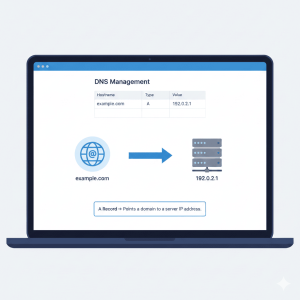
An A record points a hostname (like example.com) to an IPv4 address. If this is wrong, the website will not load. If you have a static IP from your host, it commonly lives here. ICANN’s terminology resources include definitions of core DNS record types such as A records. (ICANN acronyms and terms)
2. CNAME Record (Subdomains)
A CNAME maps one hostname to another hostname. This is common for:
www → example.com, or app subdomains like portal.example.com → a service provider’s hostname.
3. MX Records (Email Delivery)
MX records tell the internet where to deliver your email. If your MX records are missing or overwritten, email can stop immediately. This is why website changes and email changes should be handled as separate checklists, even if they happen in the same week.
4. TXT Records (Verification + Email Authentication)
TXT records are used for verification (Google Search Console, SSL validation, third-party tools) and email security policies like SPF. Google’s admin documentation explains SPF setup as a DNS TXT record and why it matters for deliverability.
TTL and DNS Propagation: Timing Is the Hidden Trap
TTL (Time To Live) controls how long DNS resolvers cache a record before asking for an updated answer. In plain terms, TTL is how long the internet “remembers” your old DNS settings.
Practical TTL Guidance (No Drama Edition)
- Stable setups: Longer TTL can reduce repeated lookups (less churn).
- Migrations or planned changes: Lower TTL ahead of time so updates spread faster and more consistently.
Workflow tip: If you’re planning a cutover, lower TTL several hours to a full day before you change records. That way, caches are already “trained” to refresh quickly when you make the real move.
What Breaks Most Often During Domain or DNS Changes
1) Editing Records Without a Backup
Before you adjust anything, copy the entire DNS zone into a safe document. If something goes sideways, you want a clean “undo” button. Many outages are not technical puzzles; they’re missing paperwork.
2) Switching Nameservers Before the New Zone Is Ready
Nameservers point the world to a DNS zone. If that zone is empty or incomplete, your website and email will behave like they’ve been unplugged. Build the destination zone first. Flip second.
3) Mixing Website Moves and Email Moves
Website records (A/CNAME) and email records (MX/TXT) are different jobs. If your business relies on email, protect your MX records and authentication TXT records before you change anything else.
4) TTL Set Too High During a Cutover
A high TTL can make your changes appear “random” across locations: some people see the new site, others see the old one, and support tickets multiply. Lower TTL ahead of time to reduce the chaos window.
Quick DNS Change Timeline (So You Can Plan Like a Human)
- T-24 to T-12 hours: Lower TTL for records you plan to change (website A/CNAME, possibly MX if email is moving).
- T-6 hours: Export/backup the full DNS zone and confirm registrar access (2FA, admin logins, renewal status).
- T-2 hours: Preconfigure the destination DNS zone (or confirm the new host has the correct records staged).
- Cutover window: Update records (or nameservers if required). Verify website + email immediately after.
- T+1 to T+24 hours: Monitor site, forms, SSL, and mail flow while caches finish refreshing.
Helpful DNS Tools and Trusted External Resources
DNS can feel abstract until you can see what’s happening. Use DNS lookup tools to confirm what the internet is actually returning, rather than assuming your changes have propagated.
“The Domain Name System (DNS) is the phonebook of the Internet.”
Source: Cloudflare
Cloudflare’s learning center is also a solid reference when you need a quick refresher on how resolution works end-to-end.
For global terminology and record-type definitions, ICANN’s reference pages can help you translate jargon into something actionable.
Security note: DNS issues are not always accidents. Reporting on DNS threats has found that many organizations experience downtime tied to DNS attacks, which is one more reason to keep records clean and access controlled.
Preparing Your Domain for Hosting, Migration, or Redesign
Whether you are redesigning a website, switching hosting providers, or planning a full migration, DNS preparation is the quiet step that prevents loud outages. Use this checklist before you touch a single record:
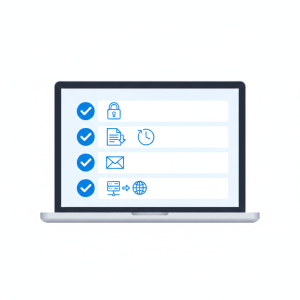
DNS Safety Checklist
- Verify domain ownership and confirm registrar access (including 2FA).
- Export and back up all DNS records.
- Lower TTL values ahead of planned changes.
- Confirm email routing records (MX + authentication TXT records) so nothing gets overwritten.
- Update nameservers only after confirming the destination DNS zone is fully configured.
If your next step is a new hosting environment, use the hosting hub page to choose the right lane. Then map DNS to the hosting plan that fits your growth curve.
Planning for scale? Align DNS with infrastructure designed for expansion.
If visibility and crawl efficiency are part of the brief, review seo hosting so your DNS and hosting choices support performance and search visibility together.
If you’re brand new to setup and want the safest “first-time” path, start here: beginner website hosting.
When to Get Professional DNS Help
If you are launching a large site, handling sensitive email authentication, or managing multiple domains, professional support is often the safer path. DNS mistakes can cost valuable traffic, disrupt paid campaigns, and break customer communication at the worst possible moment.
CoHosta’s advantage here is process: a structured workflow that protects DNS, preserves email routing, and aligns domain changes with the hosting environment you actually need, not the one you accidentally pointed to.
If you need help navigating DNS complexity, reach out for guided, hosting-aligned domain management from CoHosta.
FAQ: Domain Registration and DNS Basics
How long does DNS propagation take?
Propagation depends on TTL and caching behavior. If TTL is lowered ahead of time, many changes appear faster and more consistently. If TTL is high, some networks may keep older answers longer.
What happens if I change nameservers?
Changing nameservers tells the internet to use a different DNS provider as the source of truth for your domain. If the new DNS zone is missing records, your website and email can stop working until the zone is corrected.
Can DNS changes break email?
Yes. Email relies on MX records and often TXT records (SPF/DKIM/DMARC). Website migrations can accidentally overwrite these if you copy only web records and forget mail records.
Should I lower TTL before a migration?
Usually yes. Lowering TTL in advance reduces the window where different visitors see different versions of your site. Do it for hours to a day before a planned cutover, then make the change.
Which DNS records do most site owners need to care about?
For most websites: A (or AAAA), CNAME (often for www), MX for email, and TXT for verification and email authentication.
What’s the difference between a registrar and a DNS provider?
A registrar manages domain registration (ownership and renewal). A DNS provider hosts the DNS zone (records that route web and email). They can be the same company, but they don’t have to be.
Sources
- Cloudflare: What is DNS?
- ICANN: Acronyms and Terms
- Google Workspace Admin Help: Set up SPF
- Infosecurity Magazine: DNS attacks and downtime (survey coverage)